
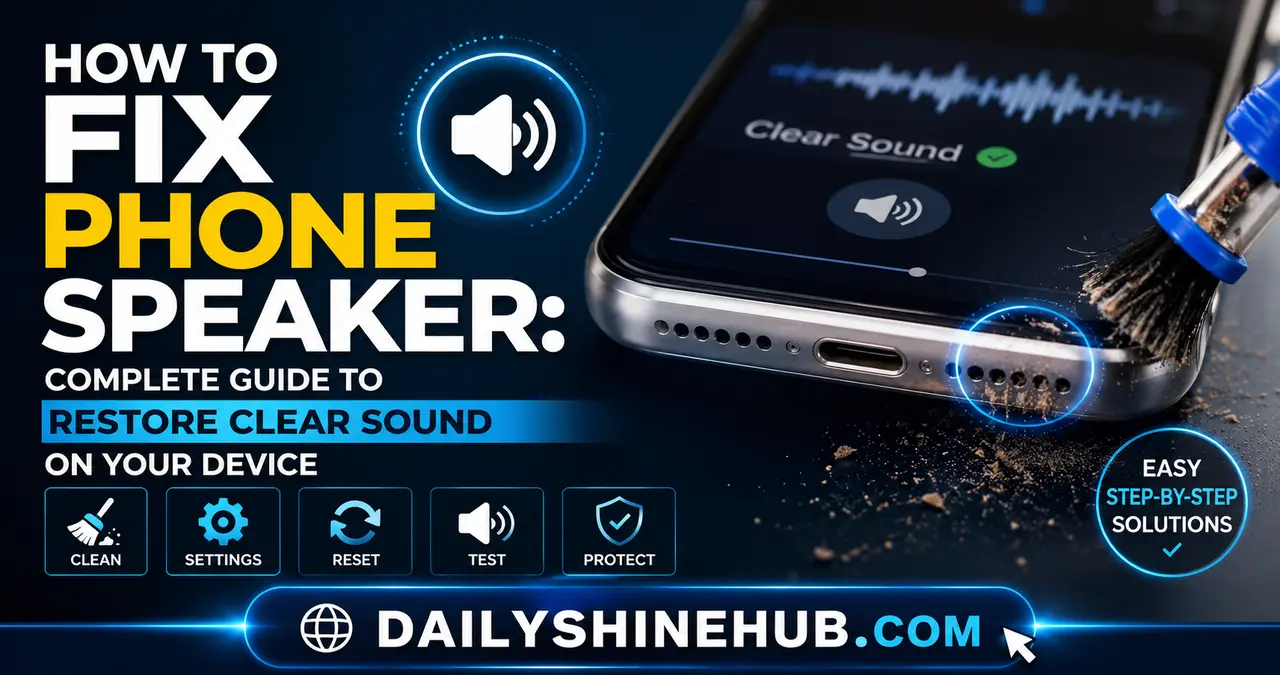
A phone speaker that suddenly becomes quiet, muffled, distorted, or completely silent can make calls, videos, music, and notifications frustrating. The good news is that a faulty speaker does not always mean your phone needs a costly repair. Software settings, Bluetooth connections, blocked speaker openings, moisture, and temporary system glitches can all cause audio problems.
This all-in-one troubleshooting guide walks Android and iPhone users through the safest ways to diagnose and fix phone speaker problems. Start with the simple solutions first, then move toward cleaning, software troubleshooting, and hardware repair.
First, Identify What Is Wrong With Your Phone Speaker
Before changing settings or opening your phone, determine exactly how the speaker is behaving.
Try playing a video or music track at a moderate volume. Then test a ringtone, notification sound, and speakerphone call. Pay attention to whether the problem affects every type of audio or only one function.
Common symptoms include:
- No sound: The phone produces no audio from its external speaker.
- Low volume: Sound works but is unusually quiet.
- Muffled sound: Audio sounds blocked, dull, or distant.
- Crackling or distortion: The speaker produces buzzing, popping, or distorted audio.
- Intermittent sound: Audio cuts in and out.
- One speaker not working: On phones with multiple speaker openings, one may appear silent during certain tests.
This distinction matters because a software setting may cause low volume, while physical blockage or liquid damage is more likely to cause muffled or distorted sound.
Step 1: Check Volume and Silent Settings
The simplest solution is often overlooked.
Press the physical volume-up button several times while audio is playing. On some Android phones and iPhones, different volume controls exist for media, calls, ringtones, and alerts.
On an iPhone, also check the Ring/Silent switch or Action button configuration, depending on your model. Open Settings > Sounds & Haptics and verify that relevant volume controls are set appropriately.
On Android, open Settings > Sound & vibration. Check media, ringtone, notification, and call volume.
If only one app has a sound problem, check that app’s own audio settings before troubleshooting the phone itself.
Step 2: Disconnect Bluetooth and Other Audio Devices
Your phone may be sending sound somewhere else.
Turn off Bluetooth temporarily and play audio again. If you have connected wireless earbuds, headphones, a car stereo, smartwatch, or speaker, disconnect them.
On iPhone, open Control Center and check the audio output destination. On Android, look for Media Output, Audio output, or a similar option in the quick settings panel.
If sound returns immediately after disconnecting another device, your phone speaker may be perfectly healthy.
Step 3: Restart Your Android Phone or iPhone
A restart can clear temporary software problems affecting audio services.
Turn the phone off completely, wait a few seconds, and turn it back on. Then test the speaker with music, a ringtone, and speakerphone.
If the speaker works after restarting but fails again later, the problem may be related to an app, system process, or recent software change.
Step 4: Check for a Blocked or Dirty Speaker
Dust, lint, pocket debris, and grime can accumulate over the speaker grille and reduce sound quality.
Hold the phone under good lighting and inspect the speaker openings. If you can see debris, gently clean the exterior with a clean, dry, soft-bristled brush.
Avoid pushing anything into the speaker holes. Do not use needles, pins, or sharp objects. Avoid pouring cleaning liquid directly onto the grille.
Compressed air can also be risky because excessive pressure may force debris or moisture deeper into the device.
For a phone that is only slightly muffled, careful dry cleaning may restore much of the original volume.
Step 5: Remove the Case and Screen Protector
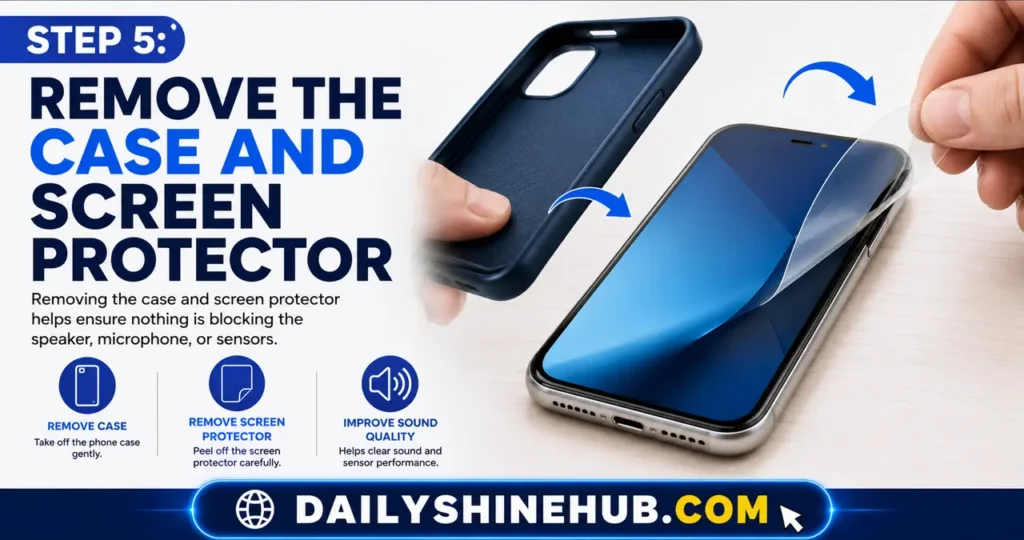
A poorly fitted case, protective film, or accessory can partially cover the speaker openings.
Remove the case and test the phone again. If you recently installed a new screen protector, check whether its adhesive or material is covering an earpiece opening.
This is particularly important when call audio is quiet but music from the main speaker sounds normal.
Step 6: If the Phone Got Wet, Stop and Let It Dry
Liquid exposure can temporarily or permanently affect speakers.
If your phone has recently been exposed to water, rain, condensation, or another liquid, disconnect chargers and accessories and allow the exterior to dry naturally.
Do not use a hair dryer, heater, or other high-temperature source. Do not deliberately charge a wet phone.
Some phones offer water-ejection or speaker-cleaning features, but these should not be treated as a substitute for proper drying or professional inspection after significant liquid exposure.
If the speaker remains distorted after the phone is completely dry, liquid may have damaged the speaker or other internal components.
Android vs. iPhone: Which Fix Should You Try?
| Problem | Android | iPhone | Best First Action |
|---|---|---|---|
| No sound | Check media volume and output | Check volume, Silent mode, and output | Disconnect Bluetooth |
| Low volume | Check Sound & vibration settings | Check Sounds & Haptics | Remove case and clean grille |
| Muffled audio | Inspect speaker openings | Inspect speaker openings | Gently clean with a dry brush |
| Bluetooth audio only | Check Media Output | Check AirPlay/audio output | Disable Bluetooth |
| Sound after restart | Possible software glitch | Possible software glitch | Update and monitor |
| Distorted after water exposure | Possible hardware damage | Possible hardware damage | Dry safely and seek service if persistent |
Step 7: Update Your Phone’s Software
Outdated software can occasionally cause audio bugs.
On Android, check Settings > System > Software update or the equivalent option provided by your manufacturer.
On iPhone, go to Settings > General > Software Update.
Install available updates, restart the phone, and test the speaker again.
If the issue began immediately after an update, look for additional system updates that may contain a fix. For broader tech trends regarding mobile accessories and software patches, keeping up with updates in the Gizmo and Gadgets space can help you stay informed on common device quirks.
Step 8: Test in Safe Mode on Android
Android users have an additional troubleshooting option: Safe Mode.
Safe Mode temporarily disables most third-party applications. The exact procedure varies by manufacturer, but it commonly involves holding the power menu’s shutdown option and selecting Safe Mode.
Test the speaker while in Safe Mode.
If the speaker works normally there, a recently installed or updated application may be interfering with audio. Remove suspicious apps one at a time and retest.
iPhone does not provide an equivalent general-purpose Safe Mode, so iPhone users should focus on restarting, updating iOS, checking settings, and identifying whether a particular app causes the problem.
Step 9: Reset Relevant Settings Before Considering a Factory Reset
If basic troubleshooting has failed, resetting settings can resolve configuration problems without immediately erasing personal data.
On an iPhone, Reset All Settings restores system preferences without deleting your photos, messages, or apps, although you’ll need to reconfigure various settings afterward.
Android phones differ significantly by manufacturer. Some provide options to reset app preferences, network settings, or other system settings.
A full factory reset should be considered a last-resort software troubleshooting step. Back up important information first, because a factory reset erases personal data and returns the device to its setup state.
Step 10: Know When the Speaker Needs Repair
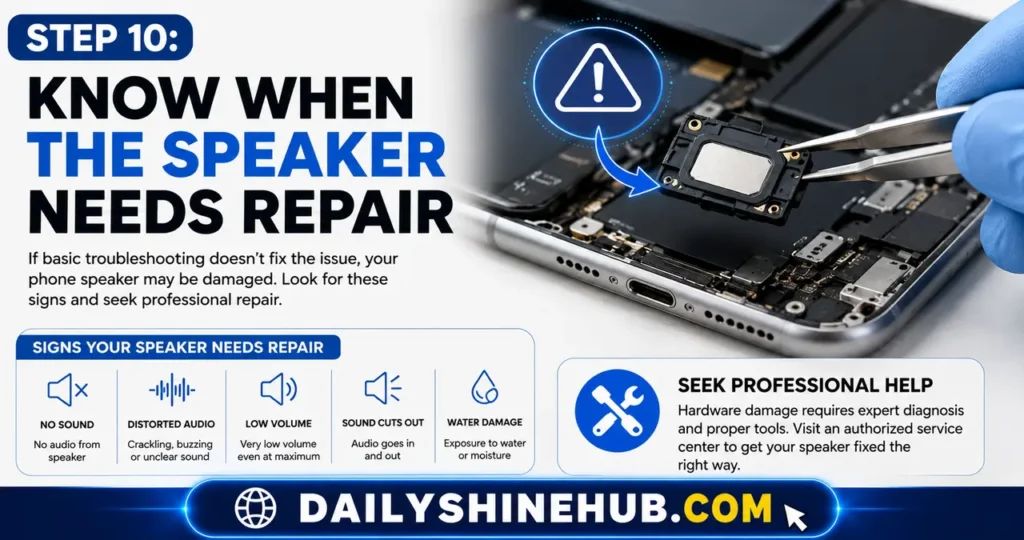
If you’ve tried the software and cleaning steps and the speaker still produces no sound or severely distorted audio, the problem may be physical.
Possible hardware causes include:
- A damaged speaker module
- Liquid or corrosion damage
- A torn speaker membrane
- Internal connector problems
- Damage caused by a drop or impact
- A failed audio component on the motherboard
Professional repair is particularly appropriate if the problem started after dropping the phone, exposing it to liquid, or replacing another internal component.
Should You Replace the Speaker Yourself?
Opening a modern smartphone is not a beginner-friendly repair. Many phones use strong adhesives, delicate flex cables, tiny components, and batteries that can be damaged if handled incorrectly.
If you have no electronics repair experience, replacing a speaker yourself can turn a relatively simple repair into a much more expensive one.
For those evaluating the complexity of internal hardware components, teardown guides on platforms like iFixit highlight the delicate flex cables and specialized tools required for safe disassembly Before paying for service, check whether your phone is still under warranty or covered by an insurance or protection plan. Unauthorized opening or repair may affect certain coverage arrangements.
A Quick Troubleshooting Order
For the safest and fastest diagnosis, follow this sequence:
- Increase the appropriate volume.
- Turn off Bluetooth and check the audio output.
- Restart the phone.
- Remove the case and accessories.
- Inspect and gently dry-clean the speaker grille.
- Check whether the phone has been exposed to moisture.
- Install available software updates.
- Test Android in Safe Mode if appropriate.
- Reset relevant settings.
- Seek professional repair if hardware damage is suspected.
This approach helps you avoid unnecessary repairs while also preventing risky DIY fixes.
Final Thoughts
A phone speaker problem can originate from something as simple as an incorrect audio output or blocked grille, so start with the easy checks before assuming the hardware has failed. Android and iPhone users can both benefit from checking volume, Bluetooth, cases, cleanliness, moisture exposure, and software updates.
If the speaker remains silent, distorted, or unusually quiet after these steps—especially following physical or liquid damage—professional diagnosis is the safest next move. Avoid inserting sharp objects into speaker openings or opening the phone without the necessary repair experience.
FAQs About Fixing Phone Speakers
1. Why is my phone speaker suddenly so quiet?
Common causes include low media volume, a connected Bluetooth device, a blocked speaker grille, a phone case covering the opening, or software problems. Remove the case, disconnect Bluetooth, clean the grille gently, and restart the phone before considering hardware repair.
2. How do I fix a muffled phone speaker?
First remove the case and inspect the speaker opening for dust or lint. Gently brush the exterior with a clean, dry soft-bristled brush. If the phone recently got wet, allow it to dry naturally. Persistent muffling may indicate liquid or hardware damage.
3. Why does my iPhone have sound but no speakerphone audio?
Check the volume and audio output, disconnect Bluetooth devices, remove the case, and restart the iPhone. If music and other sounds also fail through the speaker, the problem may be hardware-related.
4. How can I tell whether an Android speaker is broken?
Test several audio sources, including music, videos, ringtones, and speakerphone. If the speaker remains silent or distorted across different apps and still fails after restarting and testing in Safe Mode, hardware damage becomes more likely.
5. Is it safe to replace a phone speaker myself?
It can be done on some models, but modern phones require careful disassembly and may contain delicate cables and tightly integrated components. If you lack smartphone repair experience, professional service is generally safer than attempting an internal speaker replacement yourself.

Ethan Shine is a passionate content strategist, tech enthusiast, and digital media contributor at DailyShineHub. With over 5 years of experience in blogging and search engine optimization, Ethan specializes in breaking down complex topics into clear, actionable insights. When he isn’t researching the latest industry trends, he enjoys exploring global news, digital tools, and modern lifestyle concepts.