
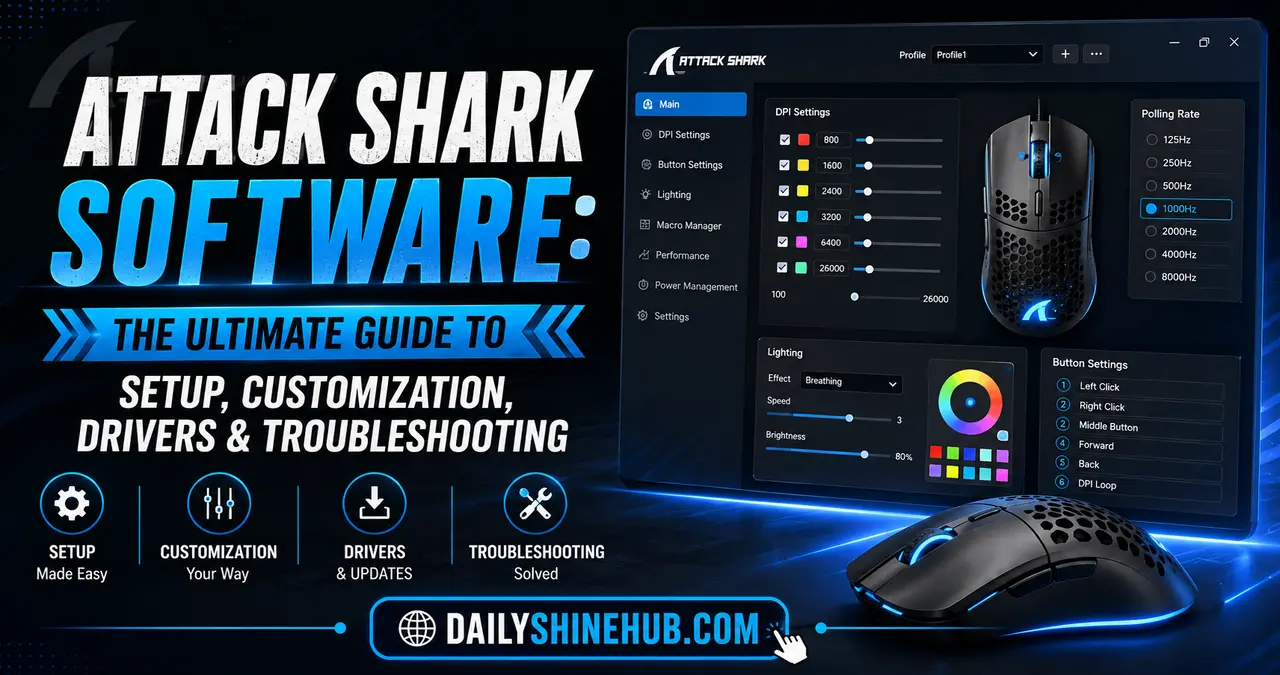
Attack Shark has become a popular choice among gamers and PC users looking for lightweight mice, mechanical keyboards, and other performance-focused peripherals. However, getting the most from an Attack Shark device often requires more than simply plugging it into a computer. The right Attack Shark software can unlock DPI controls, button remapping, RGB customization, polling-rate settings, profiles, firmware tools, and other device-specific options.
This guide is designed for gamers, competitive FPS players, productivity users, and new Attack Shark owners who want a practical way to install, configure, update, and troubleshoot their peripherals.
One important point comes first: Attack Shark software is model-specific. The official driver-download page lists separate software, firmware, manuals, and web-driver options for different products, so downloading software for a similar-looking model can result in missing features or an incompatible device.
What Is Attack Shark Software?
Attack Shark software is the configuration utility used with compatible Attack Shark gaming peripherals. Depending on the model, it can allow users to change hardware-related settings that are not always accessible through Windows’ standard mouse or keyboard controls.
For gaming mice, software may provide options such as:
- DPI sensitivity levels
- Button assignments
- Macro functions
- Polling rate
- Debounce settings
- RGB lighting
- Motion or sensor-related settings
- Wireless configuration
- Profile management
- Firmware updates
Keyboard software can offer different functionality, including RGB effects, key remapping, macros, profiles, and configuration of supported switches or performance features.
The exact options depend on the specific Attack Shark model. Current official download listings include products such as the X3, X11, R6, R82HE, X820Ultra, R98HE, M36HE, and many others.
How to Find the Correct Attack Shark Software
The biggest mistake users make is searching for generic “Attack Shark drivers” and installing the first file they find.
Instead, identify the exact product name printed on the device, packaging, manual, or original order information.
Step 1: Identify Your Exact Model
Look for a model designation such as:
- X3
- X11
- R1
- R6
- R5 Ultra
- R2
- X68HE
- X820Ultra
- R82HE
- X87Ultra
Do not assume that software for one series will work with another.
Step 2: Use the Official Download Page
Attack Shark maintains a dedicated driver-download section containing software, firmware, manuals, and specifications for its products.
Attack Shark Official Driver Download Page
Select your device category and locate the exact model.
Step 3: Check Whether Your Model Uses Desktop or Web Software
Some Attack Shark products provide conventional Windows software, while others may offer a browser-based configuration tool.
This distinction matters because a web configurator does not necessarily require a traditional Windows installation.
Attack Shark Software Setup: A Safe Installation Process
Once you have located the correct software, installation is generally straightforward, but a careful setup process can prevent many connection problems.
1. Connect the Device
For a mouse, connect it using the recommended connection method for your model. If the software does not detect it wirelessly, temporarily try a wired USB connection if the product supports configuration over USB.
For wireless devices, make sure the receiver is connected directly to the computer rather than through an unreliable hub.
2. Download the Correct Package
Download the software corresponding to your exact model.
Avoid unofficial driver mirrors whenever the official manufacturer provides the required file.
3. Install the Software
Run the installer and follow the on-screen instructions.
If Windows asks for administrator permission, verify that you downloaded the installer from the manufacturer’s official source before proceeding.
4. Restart if Necessary
Some configuration utilities behave more reliably after Windows has restarted, particularly following driver or firmware-related changes.
5. Open the Configuration Utility
Launch the Attack Shark software and check whether the connected device appears.
If the mouse or keyboard is detected, you can begin customizing it.
Attack Shark Software Customization
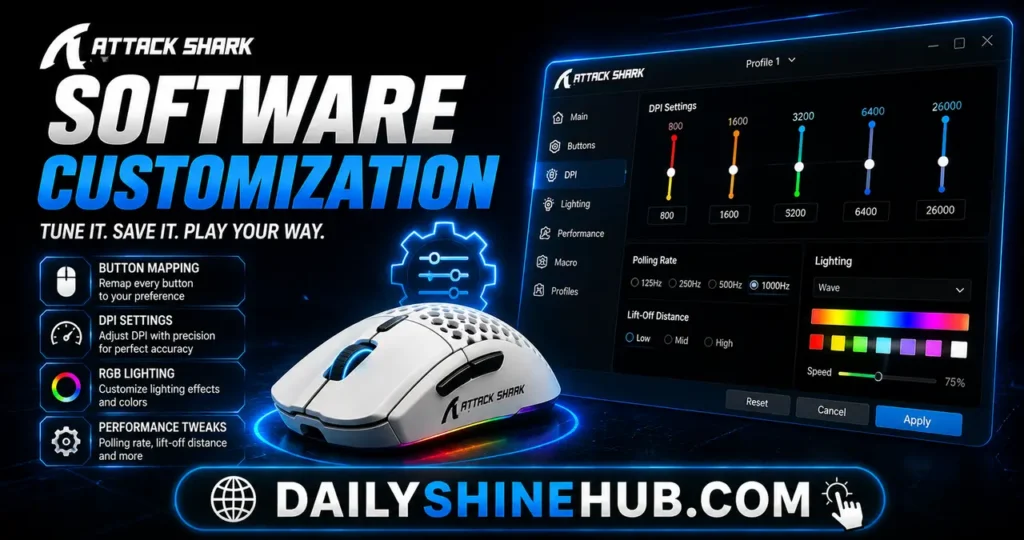
The biggest reason to install Attack Shark software is customization.
DPI Configuration
DPI determines how much the cursor moves in response to physical mouse movement.
For example, a high DPI setting moves the cursor farther with a small physical movement, while a lower DPI setting generally requires more hand movement.
Competitive players often prefer a consistent DPI setting rather than constantly changing it.
A practical approach is to create several stages—for example, a normal gaming sensitivity, a lower-precision setting for aiming, and a higher setting for desktop use.
Do not assume that the highest advertised DPI is automatically the best setting. Accuracy, control, display resolution, game sensitivity, and personal preference matter more than the maximum number.
Button Remapping
Supported Attack Shark mice can allow users to assign different actions to programmable buttons.
Common uses include:
- Push-to-talk
- Reload
- Melee
- Browser navigation
- Copy and paste
- Media controls
- Application shortcuts
For competitive gaming, avoid complicated macros when a simple button assignment will do the job.
Polling Rate
Polling rate describes how frequently a mouse reports its position to the computer.
Common settings include:
| Setting | Typical Use | Main Consideration |
|---|---|---|
| 125 Hz | Basic desktop use | Lowest reporting frequency |
| 500 Hz | General gaming | Good balance |
| 1000 Hz | Competitive gaming | Common high-performance choice |
| 2000–4000 Hz | Supported high-performance models | Higher system workload |
| 8000 Hz | Supported enthusiast models | Designed for high-refresh competitive setups |
Not every Attack Shark device supports every polling rate.
If your mouse supports 8K polling, that does not mean you must use 8000 Hz. Higher polling can increase USB and CPU activity, while the practical benefit depends on your monitor, game, system, and sensitivity.
RGB Lighting
If your Attack Shark device includes RGB lighting, software may allow you to select:
- Static lighting
- Breathing effects
- Color cycling
- Reactive effects
- Brightness
- Speed
- Individual colors
For a gaming setup, RGB customization is mostly aesthetic, but profiles can make it useful for identifying different configurations.
Profiles
Profiles are particularly useful if you use the same mouse for different activities.
For example:
FPS Profile: Low-to-medium DPI, customized side buttons, performance-focused polling rate.
Work Profile: Standard DPI, browser shortcuts, copy/paste assignments, quick navigation while reading the latest technology news.
Creative Profile: Additional shortcuts for editing or design applications.
Saving profiles can eliminate the need to repeatedly change settings.
Attack Shark Drivers vs. Firmware
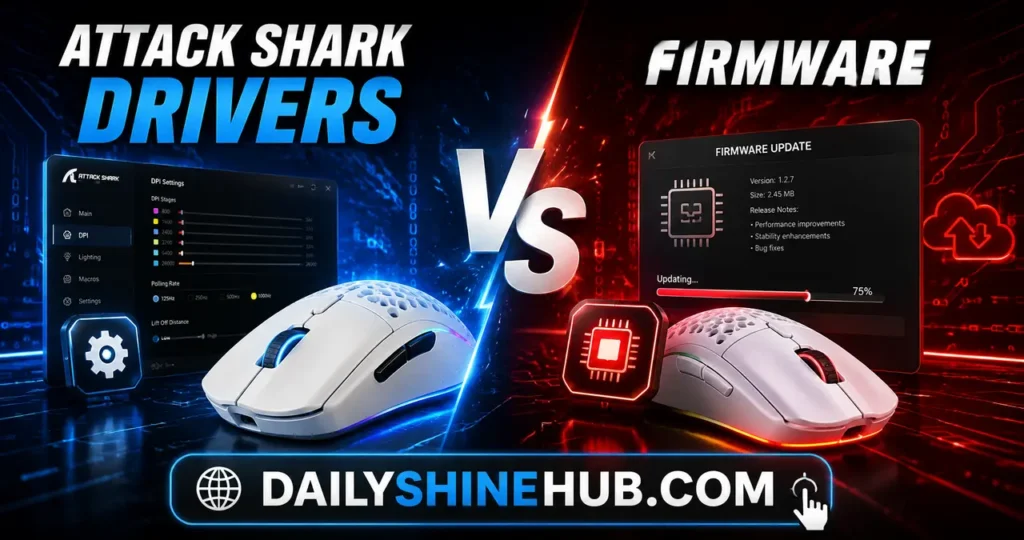
These terms are often confused.
A driver or configuration utility allows Windows software to communicate with and configure a peripheral.
Firmware is the software stored on the device itself.
A firmware update can potentially improve compatibility or correct device-level issues, but it also deserves more caution because interrupting a firmware update can create problems.
Attack Shark’s official download listings distinguish between software, firmware, manuals, and web-driver resources depending on the product.
When Should You Update Firmware?
Update firmware when:
- Attack Shark specifically recommends it
- Your model has a known compatibility issue
- A documented firmware update fixes a problem you are experiencing
- The manufacturer provides clear instructions for your exact hardware revision
Do not install firmware intended for a different model simply because the product names appear similar.
Attack Shark Software Troubleshooting
Even when the correct software is installed, detection problems can occur.
Attack Shark Mouse Not Detected
Start with the basics:
- Disconnect the mouse.
- Reconnect it directly to the computer.
- Try another USB port.
- If wireless, reconnect the receiver.
- Check whether the mouse works normally without the software.
- Close other mouse configuration utilities.
- Restart Windows.
- Reinstall the model-specific Attack Shark software.
Wireless configuration can be particularly sensitive to connection mode.
Software Opens but Shows No Device
First confirm that the software matches the exact model.
Then check whether the device needs to be connected through USB, 2.4 GHz, or another supported mode for configuration.
Community reports also indicate that some Attack Shark devices can behave differently depending on whether they are connected wirelessly or through USB, particularly with web-based configurators.
DPI Changes Are Not Saving
If DPI settings disappear after closing the software:
- Check whether you saved or applied the configuration.
- Look for onboard-memory/profile options.
- Make sure the correct device profile is selected.
- Restart the software and verify the setting.
- Avoid simultaneously running multiple configuration utilities.
RGB Settings Are Not Working
Check whether the lighting is disabled through a hardware shortcut.
Some devices can control lighting through physical key combinations as well as software.
Also verify that the software recognizes the device before changing RGB settings.
Wireless Connection Problems
For wireless problems:
- Recharge the device.
- Reconnect the receiver.
- Try a different USB port.
- Keep the receiver away from heavy wireless interference.
- Test the device in wired mode.
- Confirm the correct wireless mode is selected.
- Update firmware only when the official instructions specifically support your model.
What to Do If Attack Shark Software Does Not Install
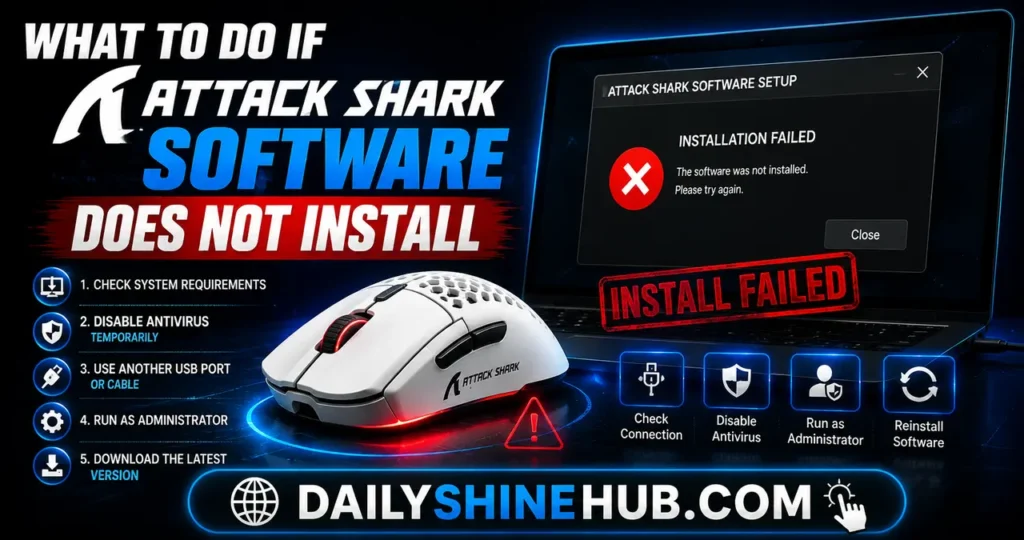
If the installer fails, do not immediately download random versions from third-party websites.
First, return to the official Attack Shark download page and verify whether your model has a newer or alternative software package. The official regional download pages also show that some products can have multiple software versions, particularly when hardware batches change.
You should also:
- Remove an older version if appropriate.
- Restart Windows.
- Temporarily close other peripheral utilities.
- Run the installer with appropriate Windows permissions.
- Confirm that your model is supported.
- Check the manufacturer’s instructions for that specific device.
Security Matters When Downloading Drivers
Peripheral software should be treated like any other executable software.
Use the manufacturer’s official download source whenever possible.
This is especially important because community discussions have previously reported security concerns involving certain Attack Shark driver packages. Attack Shark’s official download ecosystem has subsequently listed product-specific software and updated download information, so users should verify the exact package and source before installation rather than relying on old files shared in forums.
If you already downloaded a driver from an unofficial source, consider scanning it with reputable security software before running it.
Should You Use Third-Party Attack Shark Tools?
Third-party tools can sometimes provide functionality that official software lacks, particularly on Linux or for lightweight monitoring.
For example, community-developed tools exist for particular Attack Shark models and can provide configuration or battery-monitoring functionality. However, these are not official Attack Shark utilities and may have limited model compatibility.
For most users, the safest starting point is:
Official software → official web configurator → official firmware → third-party tools only when necessary.
Best Attack Shark Software Setup for Gamers
If your priority is competitive gaming, avoid changing dozens of settings at once.
Start with:
- A comfortable DPI
- A stable polling rate
- Simple button assignments
- Minimal RGB effects
- One primary gaming profile
- A separate desktop profile if needed
Test the configuration in your actual games rather than relying exclusively on software numbers.
The goal is consistency. A theoretically faster configuration is not useful if it makes your aim, movement, or workflow less predictable.
Final Attack Shark Software Checklist
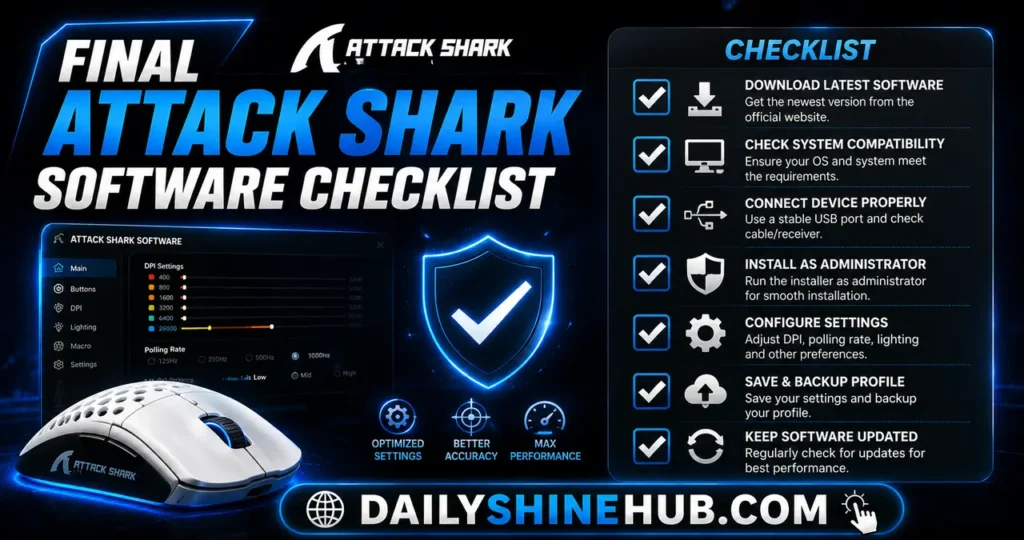
Before considering your setup complete, verify:
- You identified the exact Attack Shark model.
- You downloaded software from the official source.
- The device is correctly detected.
- DPI settings are saved.
- Buttons perform the intended actions.
- Polling rate is appropriate for your system.
- RGB settings work correctly.
- Wireless connectivity is stable.
- Profiles are saved if supported.
- Firmware is updated only when necessary.
- You have avoided unverified driver downloads.
Attack Shark software can turn a basic peripheral into a much more personalized gaming or productivity tool. The key is to treat the software as model-specific rather than searching for one universal “Attack Shark driver.” With the correct installation, sensible customization, and systematic troubleshooting, most users can get significantly more control from their Attack Shark hardware.
Frequently Asked Questions
1. Where can I download Attack Shark software?
The safest starting point is Attack Shark’s official driver-download page, where the company provides model-specific software, firmware, manuals, and related resources.
2. Why is my Attack Shark mouse not detected by the software?
Check that you installed software for the exact model, then reconnect the mouse, try another USB port, reconnect the wireless receiver if applicable, and restart the computer. Some models may require a particular connection mode for configuration.
3. Can Attack Shark software change DPI?
Yes, supported Attack Shark gaming mice generally provide DPI configuration through their model-specific software or configurator. The number of DPI stages and maximum DPI depend on the particular mouse.
4. Should I install an Attack Shark firmware update?
Only when the firmware is specifically intended for your exact model and there is a clear reason to update it. Never interrupt a firmware update or install firmware intended for another device.
5. Is third-party Attack Shark software safe to use?
Third-party tools should be treated cautiously because they are not necessarily verified or supported by Attack Shark. Whenever possible, use the manufacturer’s official software and download resources before considering community-developed alternatives.

Ethan Shine is a passionate content strategist, tech enthusiast, and digital media contributor at DailyShineHub. With over 5 years of experience in blogging and search engine optimization, Ethan specializes in breaking down complex topics into clear, actionable insights. When he isn’t researching the latest industry trends, he enjoys exploring global news, digital tools, and modern lifestyle concepts.