
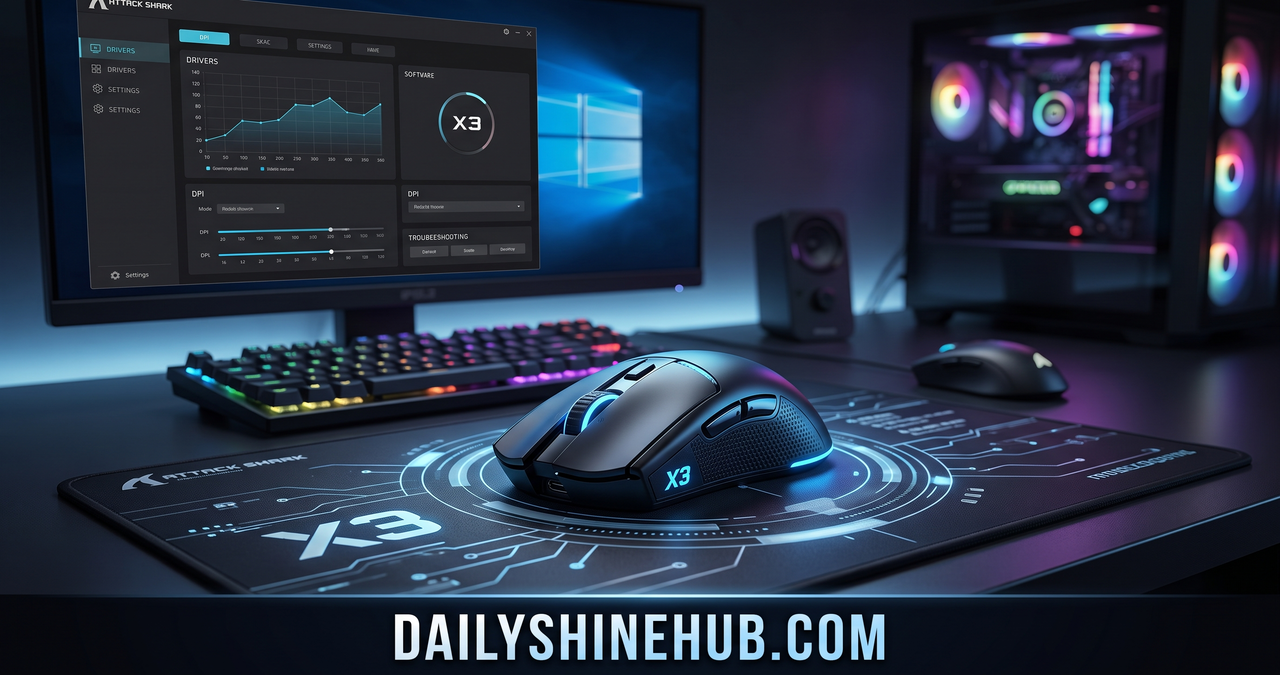
The Attack Shark X3 software is the companion utility used to configure the X3 wireless gaming mouse beyond its basic hardware controls. It can be useful for players who want to change DPI levels, customize buttons, adjust polling-related settings, create macros, and fine-tune the mouse for everyday work or gaming. The X3 itself uses a PixArt PAW3395 sensor, supports wired, 2.4GHz wireless and Bluetooth connections, and has a manufacturer-listed 1000Hz polling rate.
For a lightweight gaming mouse, software customization matters because the same hardware can feel very different depending on sensitivity, button assignments, lift-off behavior, and other settings. Understanding the Attack Shark X3 software before changing advanced options can also help prevent unnecessary firmware or configuration problems.
| Key Detail | Attack Shark X3 |
|---|---|
| Mouse type | Wireless gaming mouse |
| Sensor | PixArt PAW3395 |
| Maximum DPI | Up to 26,000 |
| Polling rate | Up to 1000Hz |
| Connections | Wired, 2.4GHz wireless, Bluetooth 5.2 |
| Listed weight | 49g ± 3g |
| Dimensions | 118.5 × 61 × 39.7 mm |
| Main software purpose | Mouse configuration and customization |
| Manufacturer | ATTACK SHARK |
| Operating focus | Primarily Windows PC configuration |
What Is Attack Shark X3 Software?
The Attack Shark X3 software is a configuration program designed to give users greater control over the X3 mouse. Instead of relying only on the physical DPI button and default mouse behavior, users can access additional settings through the computer.
Depending on the software version and firmware installed on the mouse, available configuration options can include:
- DPI or sensitivity levels
- Button remapping
- Polling-rate settings
- Macro configuration
- Lift-off-distance adjustments
- Mouse response-related options
- Profile or configuration settings
- Firmware-related functions
The exact interface can vary between software releases, so users should download the version associated with their specific X3 model rather than assuming that every third-party driver is interchangeable.
How to Download Attack Shark X3 Software
The safest starting point for Attack Shark X3 software is the manufacturer’s official download center. ATTACK SHARK provides software, firmware, manuals, and other resources through its driver-download section.
Before downloading anything, follow these steps:
- Visit the official ATTACK SHARK support/download page.
- Search for the X3 model.
- Select the X3 software rather than software for an X3 Pro, X3 Max, or another mouse.
- Download the current package provided for the model.
- Extract the downloaded archive if necessary.
- Run the installer or configuration application.
- Connect the X3 mouse to the computer.
- Open the software and allow it to detect the mouse.
- Make your changes gradually rather than modifying multiple advanced settings at once.
A good safety habit is to keep the original downloaded package until you know the new configuration works correctly.
Why the Official Download Matters
Searching for Attack Shark X3 software can produce unofficial mirrors, old driver packages, forum attachments, and software intended for related mice. These alternatives may work in some cases, but compatibility is not guaranteed.
For that reason, users should prioritize:
- The official ATTACK SHARK download page
- The correct X3 model
- Current manufacturer-provided software
- Firmware instructions supplied with the device
- Official manuals when available
Avoid installing random executable files simply because their filenames contain “X3 driver.”
Attack Shark X3 Software for DPI Configuration
One of the most useful reasons to install the Attack Shark X3 software is DPI customization. DPI, commonly used as shorthand for mouse sensitivity, determines how much cursor movement occurs for a given physical mouse movement.
The X3’s manufacturer specifications list support for DPI levels up to 26,000. That does not mean every gamer should use an extremely high DPI setting.
The Attack Shark X3 uses the PixArt PAW3395 sensor, a sensor commonly associated with modern high-performance gaming mice. If you want to understand how optical mouse sensors work and why sensor technology matters for cursor tracking, you can learn more through this detailed PixArt overview on Wikipedia. For X3 users, understanding the sensor helps put specifications such as DPI and tracking performance into better context.
For practical gaming, consider:
- Lower DPI: Often useful for broad, controlled mouse movements.
- Medium DPI: A flexible choice for gaming and general desktop use.
- High DPI: Useful for quick cursor movement or certain high-sensitivity setups.
- Very high DPI: Usually unnecessary for many conventional gaming configurations.
The important point is consistency. A comfortable sensitivity that you can reproduce reliably is generally more useful than simply choosing the largest number available.
How to Customize Buttons With Attack Shark X3 Software
Button remapping can make the X3 more convenient for both gaming and productivity. The software may allow supported buttons to perform different actions from their factory assignments.
Common customization ideas include:
- Assigning a side button to reload in a game
- Creating shortcuts for frequently used desktop actions
- Mapping a button to media controls
- Assigning application-specific commands
- Configuring supported macro functions
However, macro availability and acceptable uses can vary by game. Competitive games may restrict automation or macro behavior, so users should always check the rules of the particular game before using advanced commands.
For ordinary desktop work, button remapping can also reduce repetitive keyboard movements.
Attack Shark X3 Software and Polling Rate
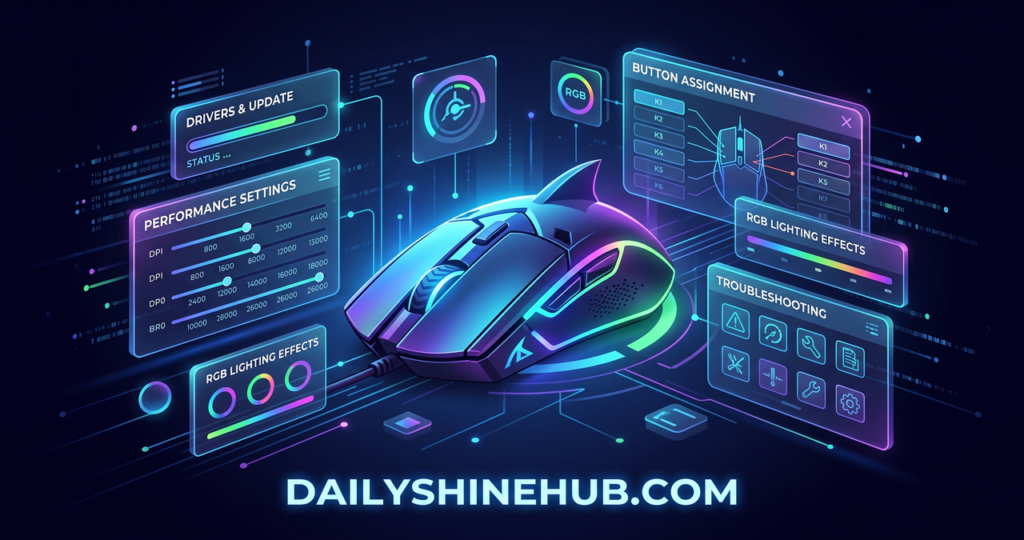
Polling rate describes how frequently the mouse reports its position to the computer. The manufacturer lists the X3 with a maximum polling rate of 1000Hz.
The Attack Shark X3 software can be useful when configuring this setting if the installed version exposes polling-rate controls.
Common choices include:
- 125Hz
- 250Hz
- 500Hz
- 1000Hz
A higher polling rate can increase the frequency of mouse reports, but it is not automatically better for every computer or every user. Higher reporting rates can also increase system workload.
If the mouse behaves inconsistently after changing the setting, return to the previous value and test again.
Lift-Off Distance and Response Settings
Some versions of the Attack Shark X3 software may provide additional options associated with mouse behavior, such as lift-off distance or response-related controls.
Lift-off distance refers to how high you can lift the mouse before the sensor stops tracking.
This matters particularly for players who frequently reposition their mouse:
- A lower setting can reduce unwanted cursor movement while repositioning.
- A higher setting may continue tracking farther from the surface.
- The ideal choice depends on the player’s movement style and mousepad.
Not every software release exposes exactly the same controls, so users should treat menu availability as version-dependent rather than assuming every X3 installation will look identical.
Attack Shark X3 Software: Firmware Updates and Precautions
Firmware is different from ordinary mouse configuration. A firmware update changes software stored on the device itself, which means the process deserves more caution than simply changing DPI.
Before installing an X3 firmware update:
- Confirm that the update is specifically intended for your X3 revision.
- Read the manufacturer’s instructions.
- Keep the mouse connected securely.
- Avoid interrupting the update.
- Do not disconnect the USB cable during the process unless instructed.
- Do not use a firmware package from an unrelated mouse model.
- Restart the software or computer if the manufacturer’s instructions recommend it.
Firmware compatibility can be especially important because similarly named products can use different internal components or revisions.
If your mouse is functioning correctly, there is generally little reason to experiment with unofficial firmware simply to unlock an extra setting.
Common Attack Shark X3 Software Problems
Although the Attack Shark X3 software provides useful configuration options, users can encounter setup or compatibility problems.
1. The Software Does Not Detect the Mouse
Try these steps:
- Connect the mouse with its USB cable.
- Try another USB port.
- Close and reopen the configuration program.
- Restart the computer.
- Confirm that the correct X3 software is installed.
- Check whether the mouse is connected through the intended mode.
The official ATTACK SHARK support information also recommends testing another USB port or computer when troubleshooting receiver-related problems.
2. Settings Do Not Seem to Apply
If a DPI or button change does not appear to work:
- Apply or save the configuration if the interface provides that option.
- Disconnect and reconnect the mouse.
- Check whether the software is controlling the correct device.
- Test the mouse in another application.
- Reopen the configuration utility.
Some settings may require a restart or reconnection before their effect becomes obvious.
3. The Wrong Driver Was Installed
This is one of the easiest mistakes to make when searching online. The X3 name can appear alongside related products, third-party software, and community-created configuration tools.
Always verify:
- Model name
- Hardware revision where applicable
- Software version
- Firmware compatibility
4. Wireless Problems Continue
If the X3 works through USB but has problems wirelessly, test the receiver separately. Keep the receiver reasonably close to the mouse and away from unnecessary wireless interference.
Also try another USB port. A USB extension can sometimes make receiver placement more convenient.
Is Attack Shark X3 Software Worth Installing?
For users who only need basic mouse functionality, installing software may not be essential. The X3 can be used as a conventional mouse without constantly changing configuration settings.
The software becomes more useful when you want to:
- Customize DPI levels
- Remap buttons
- Adjust supported performance settings
- Configure macros
- Fine-tune mouse behavior
- Manage available device settings
Independent testing has found that the X3 offers strong sensor performance and versatile wireless connectivity, while also noting that its click latency is less competitive for the highest level of competitive gaming. That distinction is important: configuration software can improve customization, but it cannot fundamentally transform the hardware’s measured characteristics.
For general gaming, casual FPS play, productivity, browsing, and everyday use, the X3’s combination of low weight and multiple connection methods can make it a flexible peripheral.
Attack Shark X3 Software vs. Using the Mouse Without Software
There are advantages to both approaches.
Using the software:
- More customization
- DPI configuration
- Button remapping
- Additional supported settings
- Greater control over the mouse
Using the mouse without software:
- Simpler setup
- Fewer background applications
- Less configuration to maintain
- Useful for people who prefer default settings
If you already like the factory configuration, there is no need to change settings simply because additional options exist.
Tips for Getting the Most From the X3
A few practical habits can make the setup smoother:
- Start with a moderate DPI setting.
- Change only one setting at a time.
- Keep a record of your preferred configuration.
- Test new settings in a low-pressure environment.
- Use the official software whenever possible.
- Avoid unnecessary firmware modifications.
- Keep the wireless receiver positioned for a stable connection.
- Clean the mouse and mouse feet periodically.
- Do not assume a higher DPI or polling rate automatically improves performance.
The X3 uses a PAW3395 sensor and supports up to 1000Hz polling according to the manufacturer’s specifications, so the hardware provides a substantial configuration range. The key is selecting settings that match your actual usage rather than chasing specifications alone.
Final Thoughts on Attack Shark X3 Software
The Attack Shark X3 software adds an important layer of customization to an already feature-focused wireless gaming mouse. Its main value comes from giving users control over settings such as DPI, button assignments, polling behavior, and other supported configuration options.
The best approach is to keep the setup simple: download the correct software from the manufacturer, connect the mouse properly, change one setting at a time, and avoid unofficial firmware unless there is a specific and well-understood reason to use it. The X3’s PAW3395 sensor, lightweight design, 2.4GHz wireless connection, Bluetooth support, and wired mode give it considerable flexibility, while independent testing shows that users should keep realistic expectations about competitive-level click latency.
Ultimately, Attack Shark X3 software is most useful when you want to personalize the mouse rather than simply operate it. With the correct driver and sensible settings, you can create a configuration that works for gaming, browsing, office tasks, and other everyday computer activities.
Related: Read our detailed guide on Running Gadgets: 15 Smart Devices and Tools to Improve Every Run
FAQs About Attack Shark X3 Software
1. What is Attack Shark X3 software used for?
Attack Shark X3 software is used to configure compatible mouse functions. Depending on the version, it can provide controls for DPI, button assignments, polling rate, macros, lift-off distance, and other supported settings.
2. Where should I download Attack Shark X3 software?
The safest option is the official ATTACK SHARK driver-download page. Select the X3 model and use the software package supplied for that device instead of downloading an unknown executable from a third-party website.
3. Does Attack Shark X3 software change DPI?
Yes, compatible X3 configuration software can provide DPI controls. The manufacturer’s current X3 specifications list a maximum DPI of 26,000.
4. Can I use the Attack Shark X3 without software?
Yes. The mouse can function as a normal wired or wireless mouse without requiring you to constantly run configuration software. However, software is useful when you want deeper customization.
5. Why is my Attack Shark X3 software not detecting the mouse?
Start by connecting the mouse through USB, trying another USB port, restarting the software, and confirming that the installed application matches the X3 model. If wireless connectivity is the problem, test the receiver separately and follow the manufacturer’s troubleshooting instructions.
DailyShineHub

Ethan Shine is a passionate content strategist, tech enthusiast, and digital media contributor at DailyShineHub. With over 5 years of experience in blogging and search engine optimization, Ethan specializes in breaking down complex topics into clear, actionable insights. When he isn’t researching the latest industry trends, he enjoys exploring global news, digital tools, and modern lifestyle concepts.